We recommend updating to macOS 26.6 Tahoe, iOS 26.6, and iPadOS 26.6, not just for the many security fixes, but also because they promise to optimize Spotlight performance for the forthcoming version 27 upgrades.

 Ask Adam LLC: macOS & iOS consulting
We recommend updating to macOS 26.6 Tahoe, iOS 26.6, and iPadOS 26.6, not just for the many security fixes, but also because they promise to optimize Spotlight performance for the forthcoming version 27 upgrades.
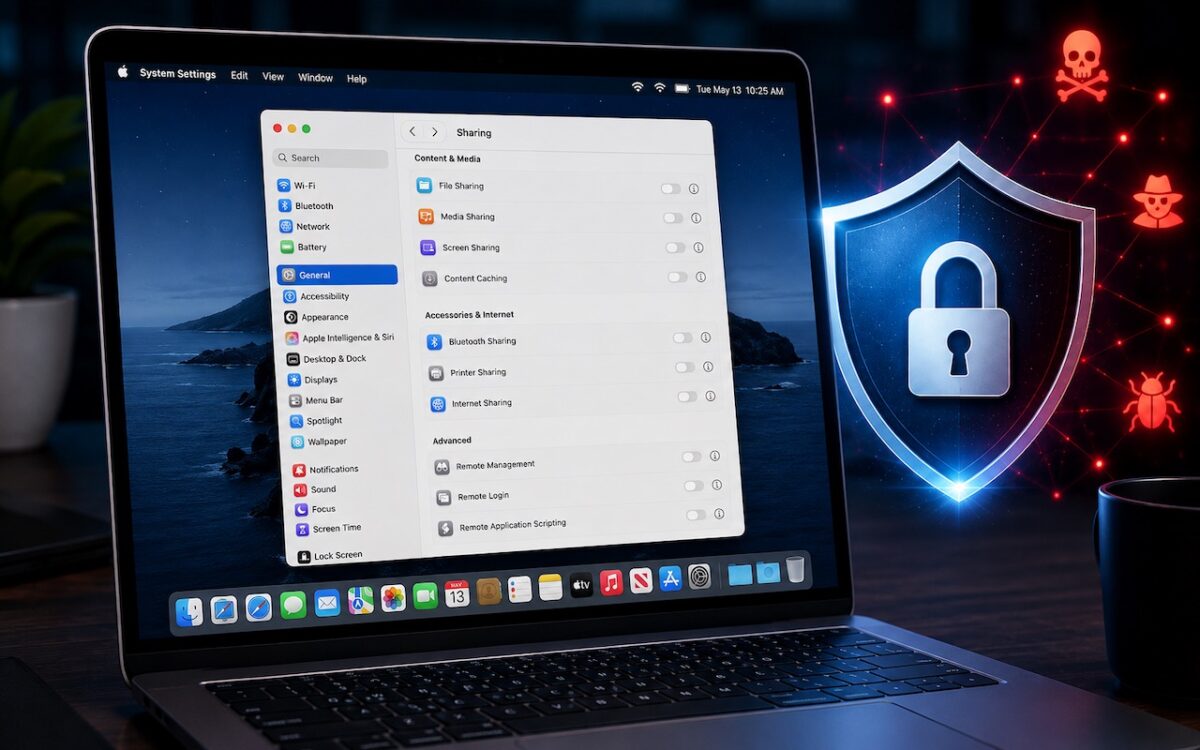
Apple patched a Screen Sharing flaw that let attackers connect without authentication. Update now — and while you’re thinking about it, turn off any sharing services you’re not actively using.
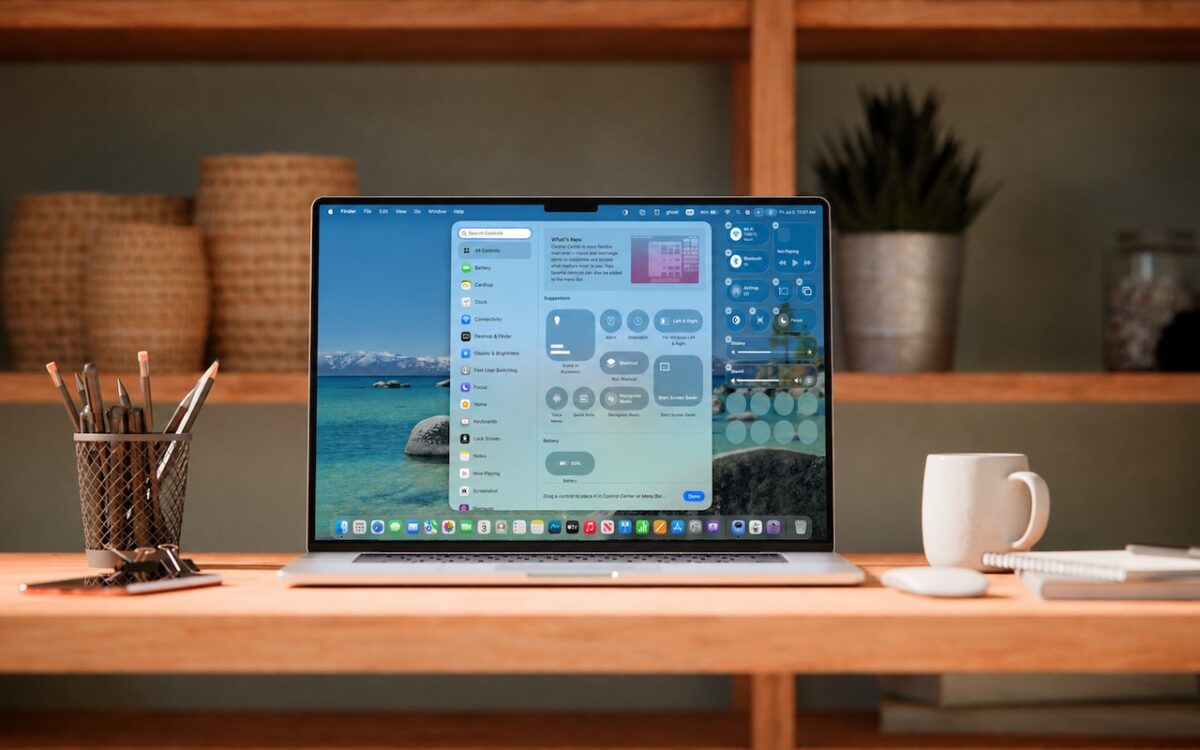
Stop wasting menu bar space. macOS 26 Tahoe’s revamped Control Center lets you add, remove, resize, and rearrange controls — including third-party ones — to fit your needs.
Those who have been missing Safari’s compact tab bar are in luck — it’s back as of macOS 26.4 and iPadOS 26.4. The compact tab bar is a welcome way to save vertical space for content.
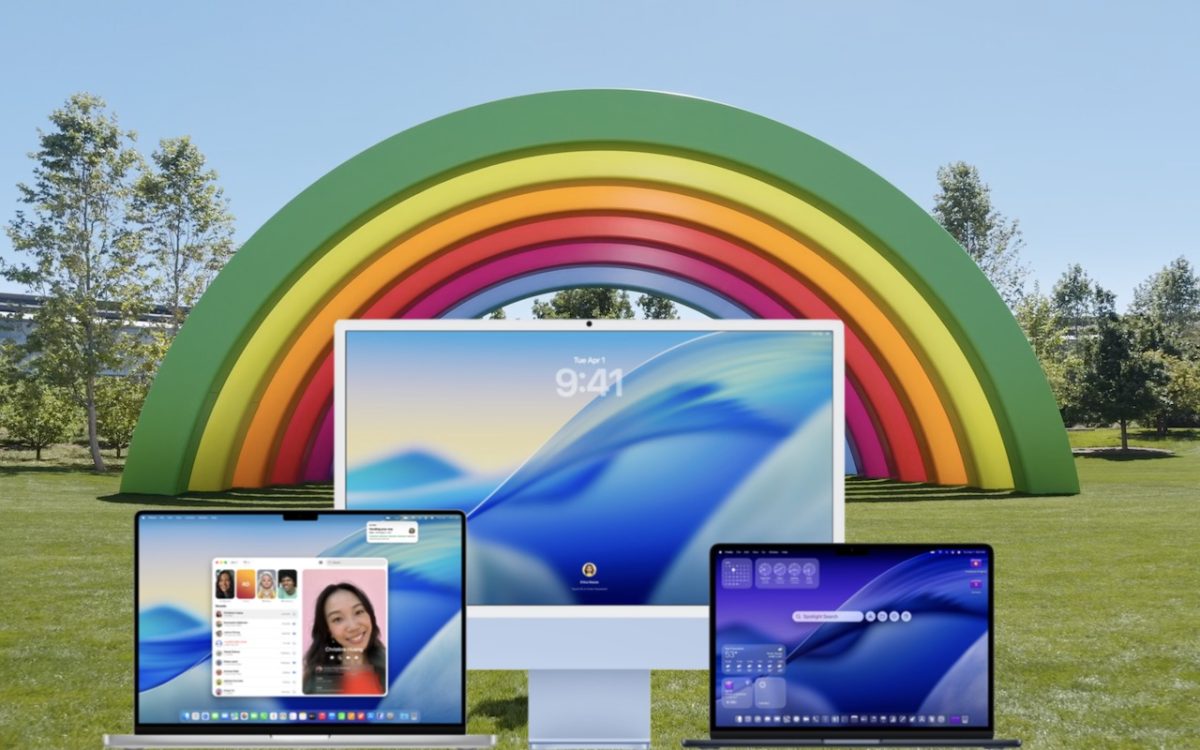
When should you upgrade to macOS 26 Tahoe? There’s no rush to install it today, but we believe it’s safe for those who want to take advantage of the new features. Here’s what to do before, during, and after the upgrade.

Dark room, important video call? macOS 26.2’s Edge Light transforms your Mac’s display into an on-screen ring light, illuminating your face so you’re visible on camera.

Apple’s Passwords app can now show your password history in macOS 26 Tahoe, iOS 26, and iPadOS 26, helping you track down why that “correct” password isn’t working.
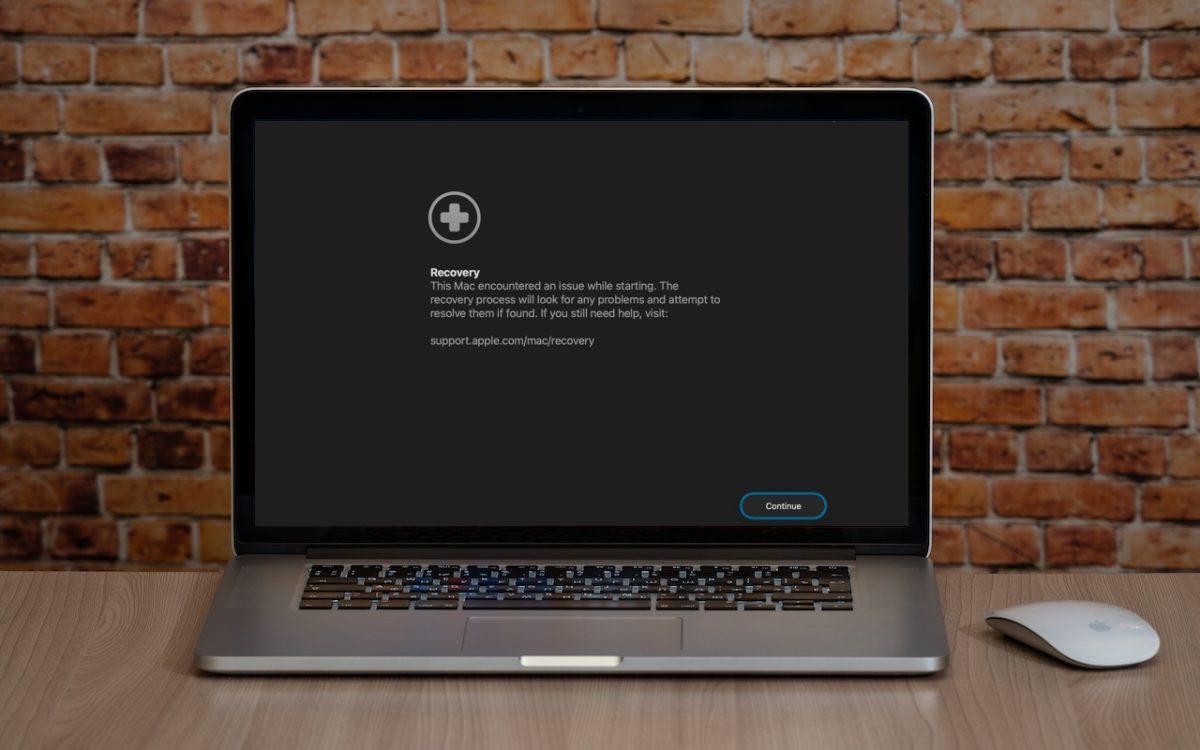
macOS 26 Tahoe brings a new Recovery Assistant, which automatically detects and attempts to resolve Mac problems. Just remember: automated recovery can be helpful, but backups are still essential.
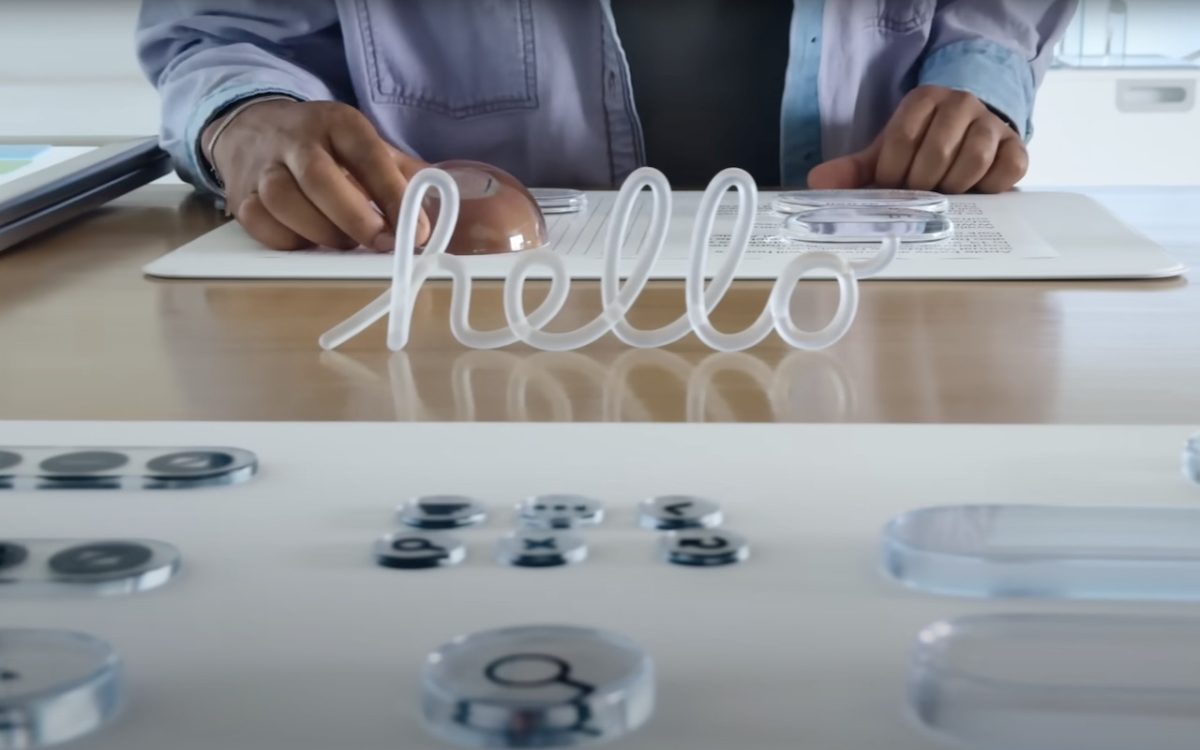
Apple’s new Liquid Glass interface brings semi-transparent, floating controls to all your devices. Here’s what that means and how to customize it to optimize your experience.